Peptora User Manual
Updated: July 19, 2026
Getting Started
What is Peptora?
Peptora is a free web app for exploring peptides. You can use it right now at app.peptora.app — there is no sign-up and no payment.
It brings several tools together in one place:
- A peptide reference library of 42 peptides across 8 categories
- A dose (reconstitution) calculator
- Suggested and custom stacks
- Dose tracking
- Reminders
- A news feed of peptide research and protocol notes
The whole app is bilingual. You can switch between English and Icelandic at any time.
Peptora is for educational use only. Many peptides discussed are research compounds not FDA-approved. Always consult a qualified healthcare provider before starting, changing, or stopping any protocol. Nothing here is medical advice.
All of your personal data stays on your device. There is no account and nothing is uploaded. The final section, “Your Data & Privacy”, explains exactly what this means.
Using it in the browser, as an app, or on Android
You have three ways to use Peptora, and they all share the same features.
In your browser. Open app.peptora.app in any modern browser on your phone, tablet, or computer. There is nothing to install.
As an installed app (PWA). Peptora is a Progressive Web App, so you can install it to your home screen for a full-screen, offline-capable experience. On supported browsers an install banner appears offering to add it. You can also install it manually from your browser menu — look for “Add to Home Screen” or “Install app”.
As an Android app. If you prefer a native Android build, download the APK from peptora.app/download.
Whichever way you use it, the features are identical. Keep one thing in mind: because there is no account and no sync, each browser and each device keeps its own separate local data. Vials, reminders, and logs you create in one place will not appear in another.
First-run setup (onboarding)
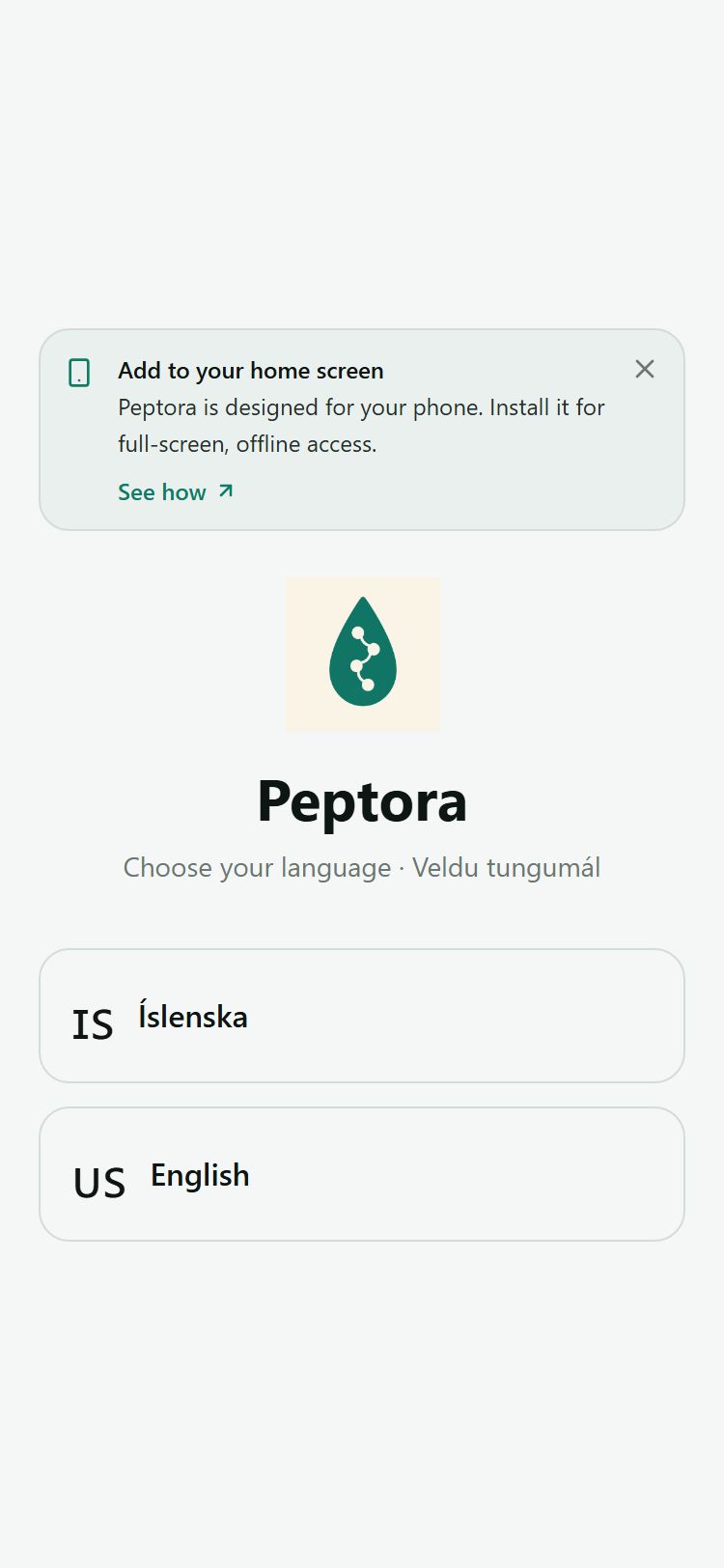
The first time you open Peptora it walks you through a short setup. The steps, in order:
- Choose your language — English or Icelandic (ÍS).
- Welcome — a brief introduction.
- Experience level — Beginner, Standard, or Advanced. This controls which dosing tier peptide pages emphasize.
- Gender — used to highlight gender-specific dosing notes where they exist.
- Research disclaimer — read it and accept it to continue.
- Newsletter signup — optional, and you can skip it.
- Done — you land on the Home screen.
You can move back a step at any point during setup. None of these choices are permanent — everything you pick here can be changed later in Settings.
Quick start: your first five minutes
Here is the fastest path from opening the app to logging a dose:
- Find your peptide. On the Home screen, search for it by name or browse in from a category.
- Read its dosing section. Open the peptide’s page and review the dosage information.
- Open the calculator. Tap “Calculator” (the “Open calculator” action) on the peptide page — its preset auto-fills the calculator for you.
- Get your units to draw. Enter your vial size, how much BAC water you are adding, and your target dose. The calculator shows the number of units to draw.
- Save and log it. Add the vial under My Stuff → My Vials, then log your first dose.
Home & the Peptide Library
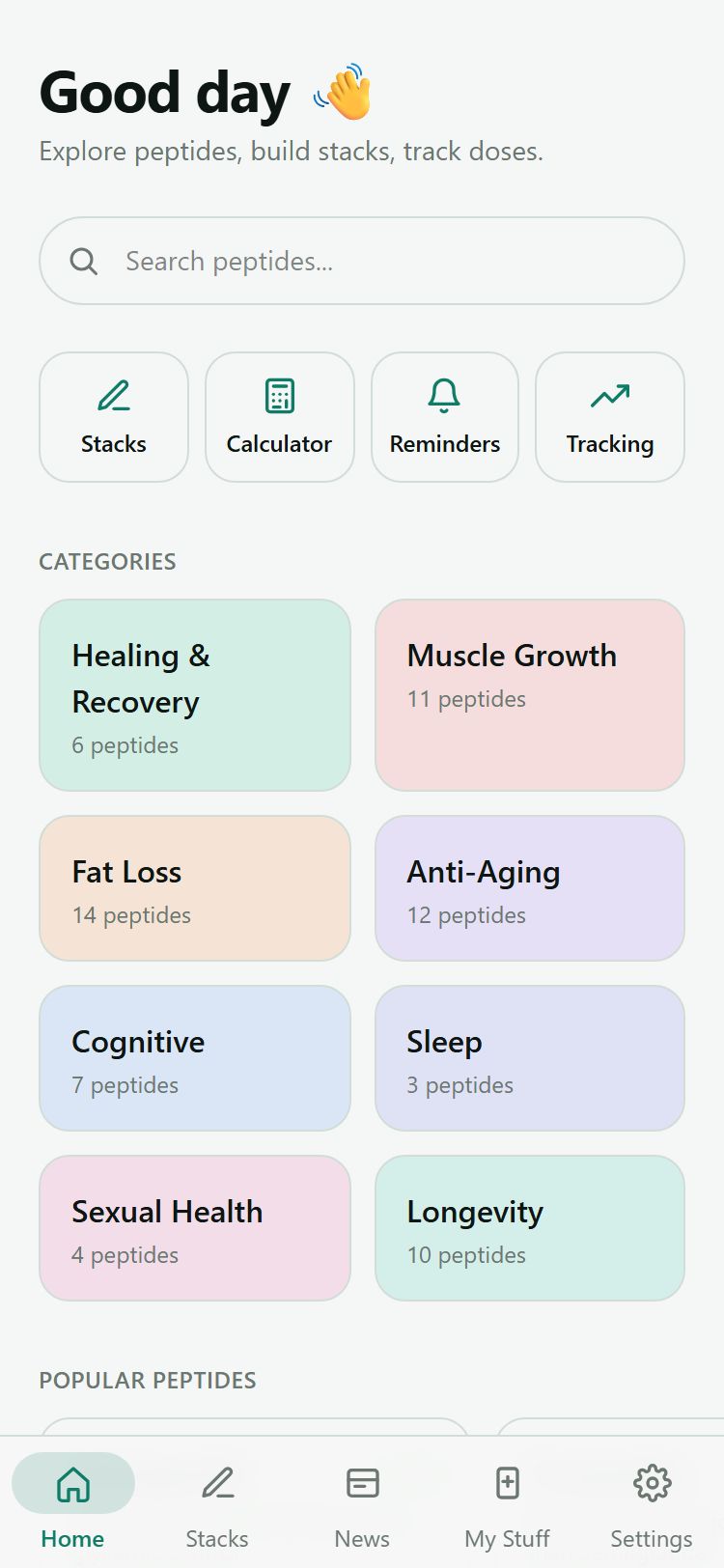
Home is where the app opens. At the top is a greeting header and the search box. Below them sits a row of quick actions — Stacks, Calculator, Reminders, and Tracking — that jump you straight to those tools. Further down you will find the Categories row and a list of Popular peptides. A newsletter card may also appear here; you can dismiss it if you are not interested.
The bottom navigation
A bar along the bottom of the screen is how you move around the app. It has five tabs:
- Home — the peptide library and search
- Stacks — suggested and custom stacks
- News — the article feed
- My Stuff — your vials, reminders, and dose tracking
- Settings — preferences and app info
Searching
The search box at the top of Home filters the library live as you type — the list narrows with each character. A running match count tells you how many peptides fit what you have typed. If nothing matches, you see a “no peptides matching” message, so you know the search ran and simply came up empty.
Categories
Peptides are organized into 8 categories, shown in a row on Home. Tap a category to see the peptides in it.
On a category page you can narrow the list further with filter chips:
- Beginner-friendly
- FDA-approved
- Women
- Men
Peptides that qualify carry an FDA badge, so you can spot them at a glance.
Peptide detail pages
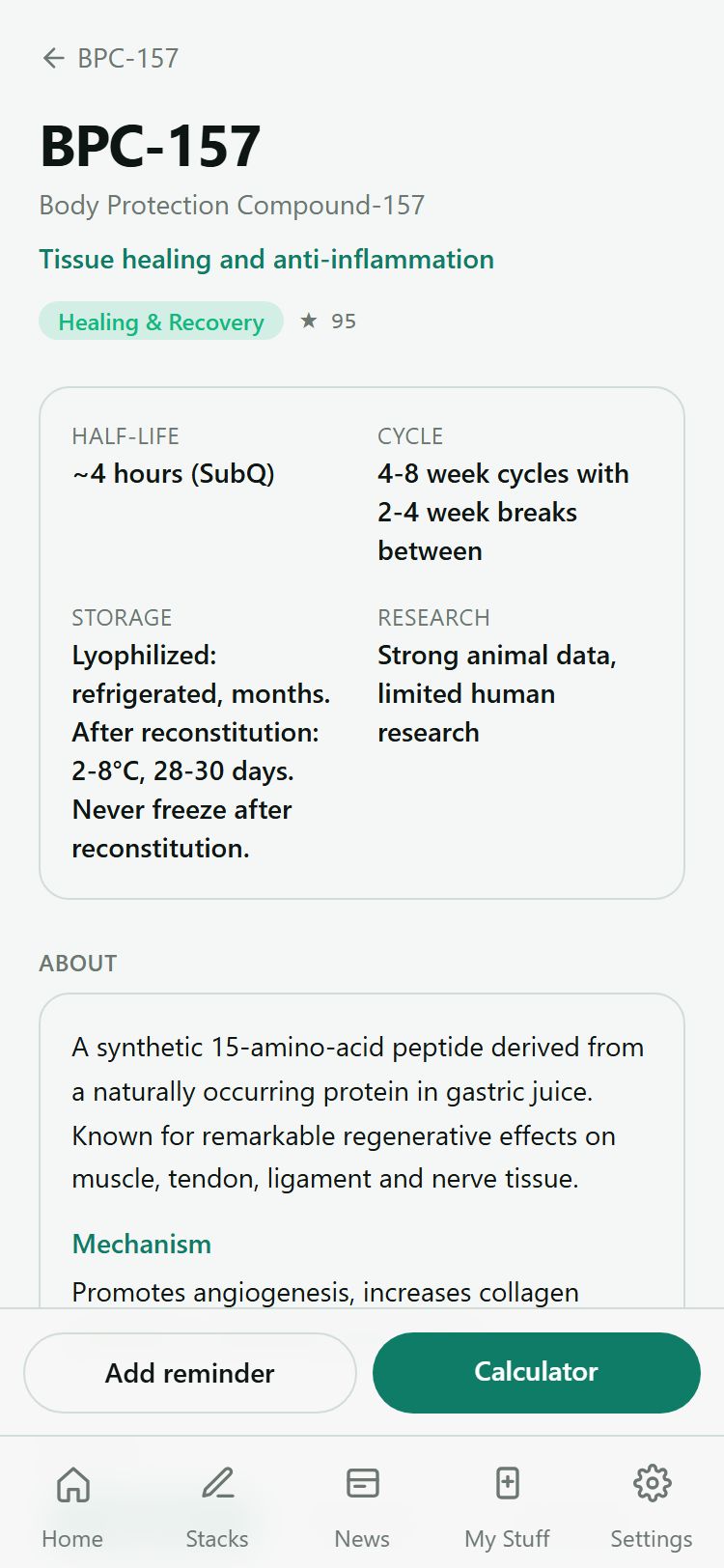
Each peptide has its own page. From top to bottom you will find:
- Quick facts — half-life, route, and storage at a glance.
- About — what the peptide is and how it works (its mechanism).
- Dosage — three tabs: Beginner, Standard, and Advanced. Each tab shows the dose, frequency, duration, route, and the syringe units to draw. The tab that opens first follows your experience level from Settings.
- Reconstitution reference table — a quick table pairing each vial size and water amount with the units to draw.
- Benefits
- Side effects
- Cautions
- Gender notes — separate notes for men and women where the guidance differs.
- Timing & Cycle — when to take it and how long a cycle runs.
- Stacks well with — peptides commonly combined with this one.
- Research — the reference draws on 92 sourced studies. Tap a citation to open the journal or PubMed link.
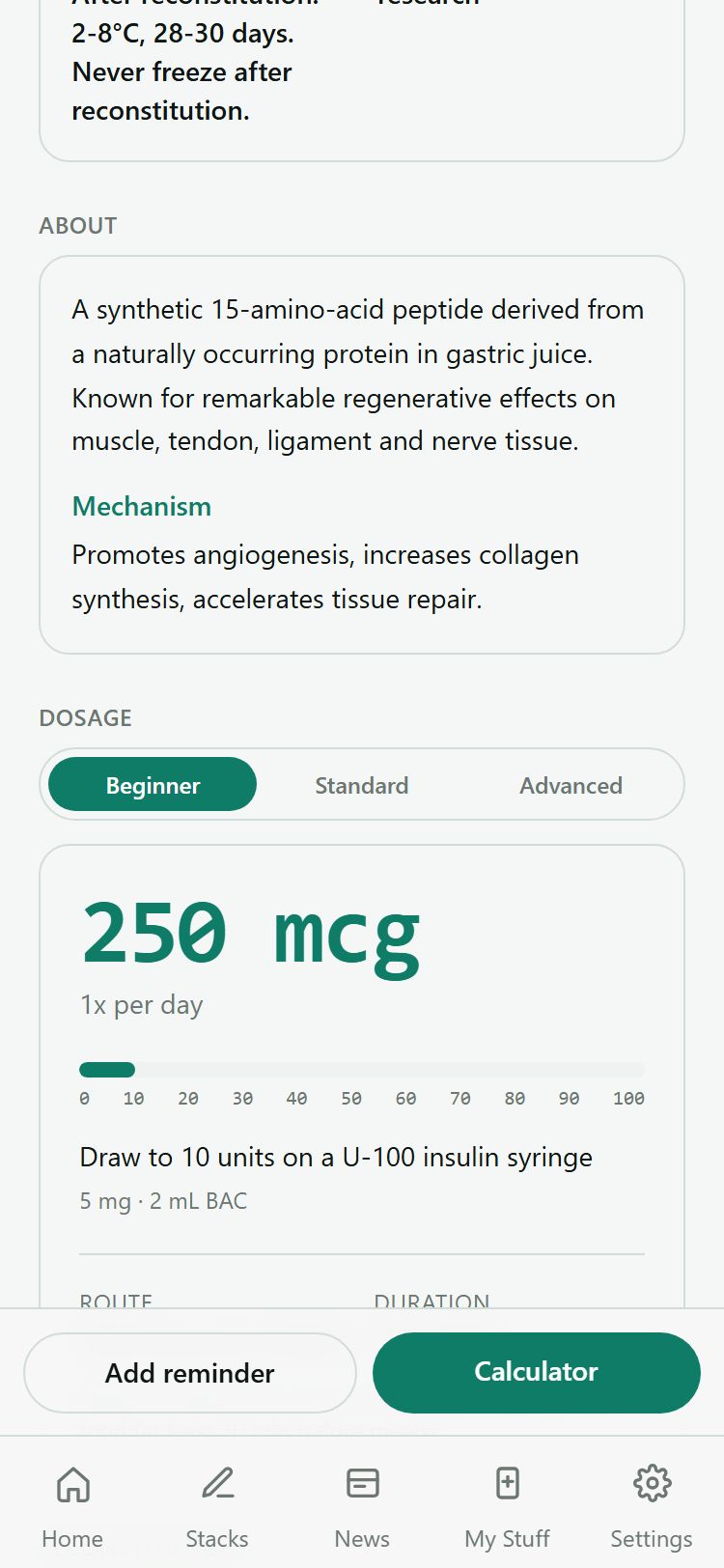
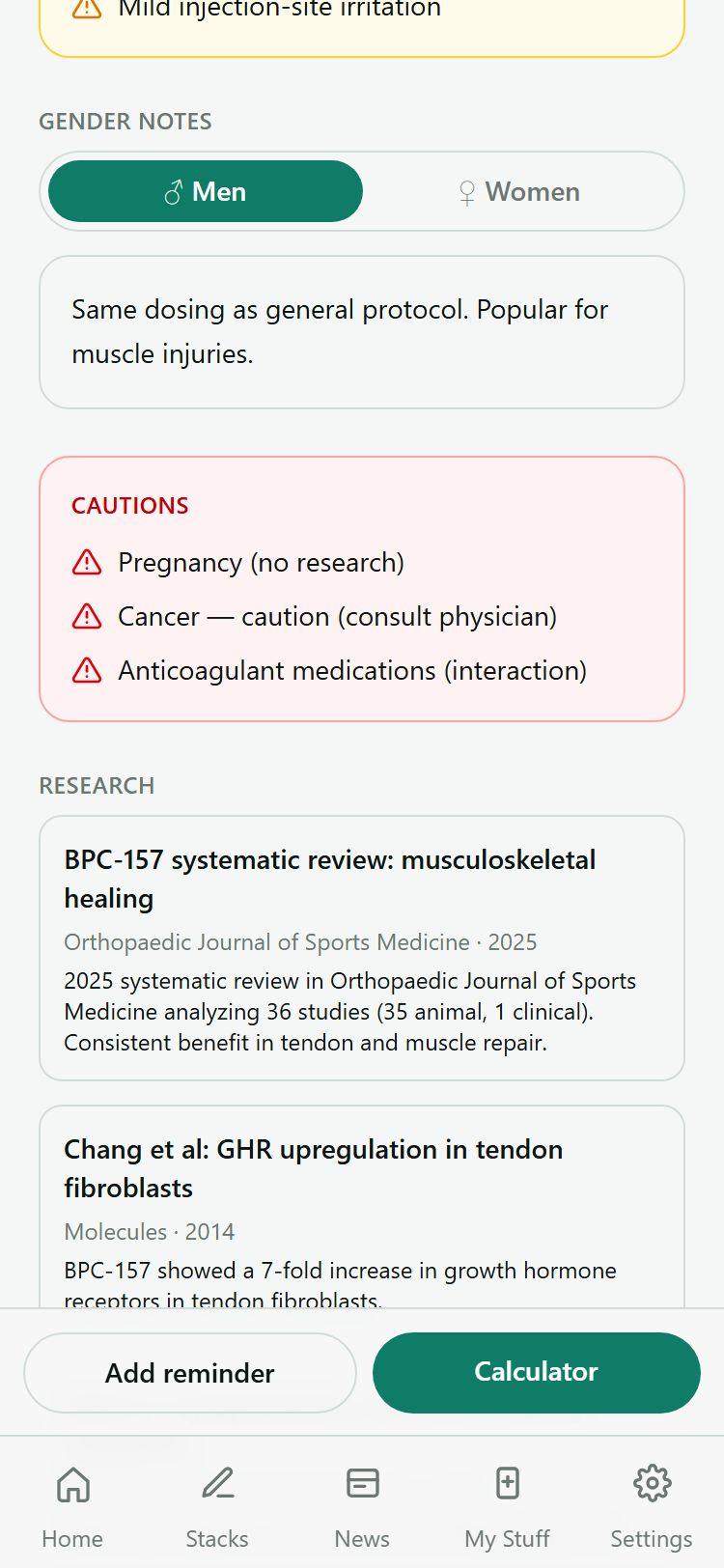
Two actions sit on the page: Add reminder and Calculator (which opens the calculator pre-filled for this peptide). Every peptide page also carries its own disclaimer.
Dose Calculator
What reconstitution means
Peptides usually arrive as a freeze-dried powder in a sealed vial. Reconstitution is the step of dissolving that powder in bacteriostatic (BAC) water so you can measure and draw a dose.
The idea is simple: the amount of peptide in the vial (in mg) together with the amount of water you add (in ml) gives a concentration (mg/ml). The calculator takes that concentration and your target dose (in mcg or mg) and converts it into the number of units to draw on an insulin syringe.
Using a peptide preset
The quickest way to use the calculator is to start from a preset. 30 of the injectable peptides come with one.
- Pick a peptide from the list (or arrive here from a peptide page’s Calculator action).
- The calculator auto-fills the vial-size options, a recommended amount of BAC water, and a safe dose range for that peptide.
- A dose-range hint shows the typical low-to-high dose per unit, so you can stay inside it.
Manual mode
If your peptide has no preset, or you simply want full control, switch to manual entry. In manual mode you type your own vial size (mg), water amount (ml), and dose — nothing is fixed for you.
Syringe sizes
The calculator works with standard U-100 insulin syringes in three sizes:
- 0.3 ml (30 units)
- 0.5 ml (50 units)
- 1.0 ml (100 units)
Your choice is remembered for next time. If a dose would not fit in the syringe you picked, an overdraw warning appears telling you to choose a larger one.
Reading the results
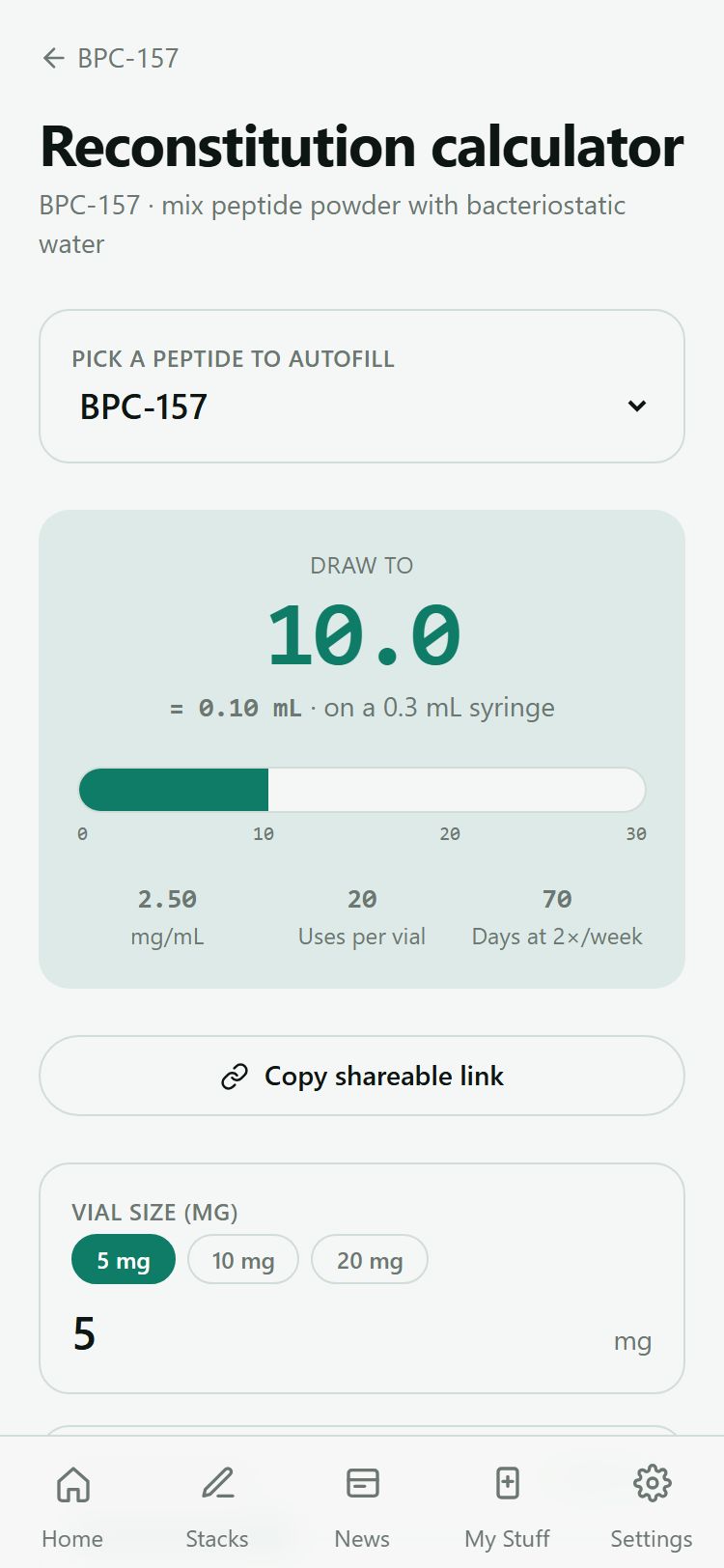
The calculator gives you four figures:
- Units to draw — the large number, and the one you act on.
- Concentration — the strength of your mix (mg/ml).
- Doses per vial — how many uses the vial holds.
- Days a vial lasts — how long it will last at your dosing schedule.
Sharing a calculation
To share a specific mix, tap Copy shareable link. The link encodes everything about the calculation — peptide, vial size, water, dose, and syringe — in its address (?peptide=&vial=&bac=&dose=&unit=&syringe=). When someone opens it, their calculator loads with all of those values already filled in.
Stacks
Browsing suggested stacks
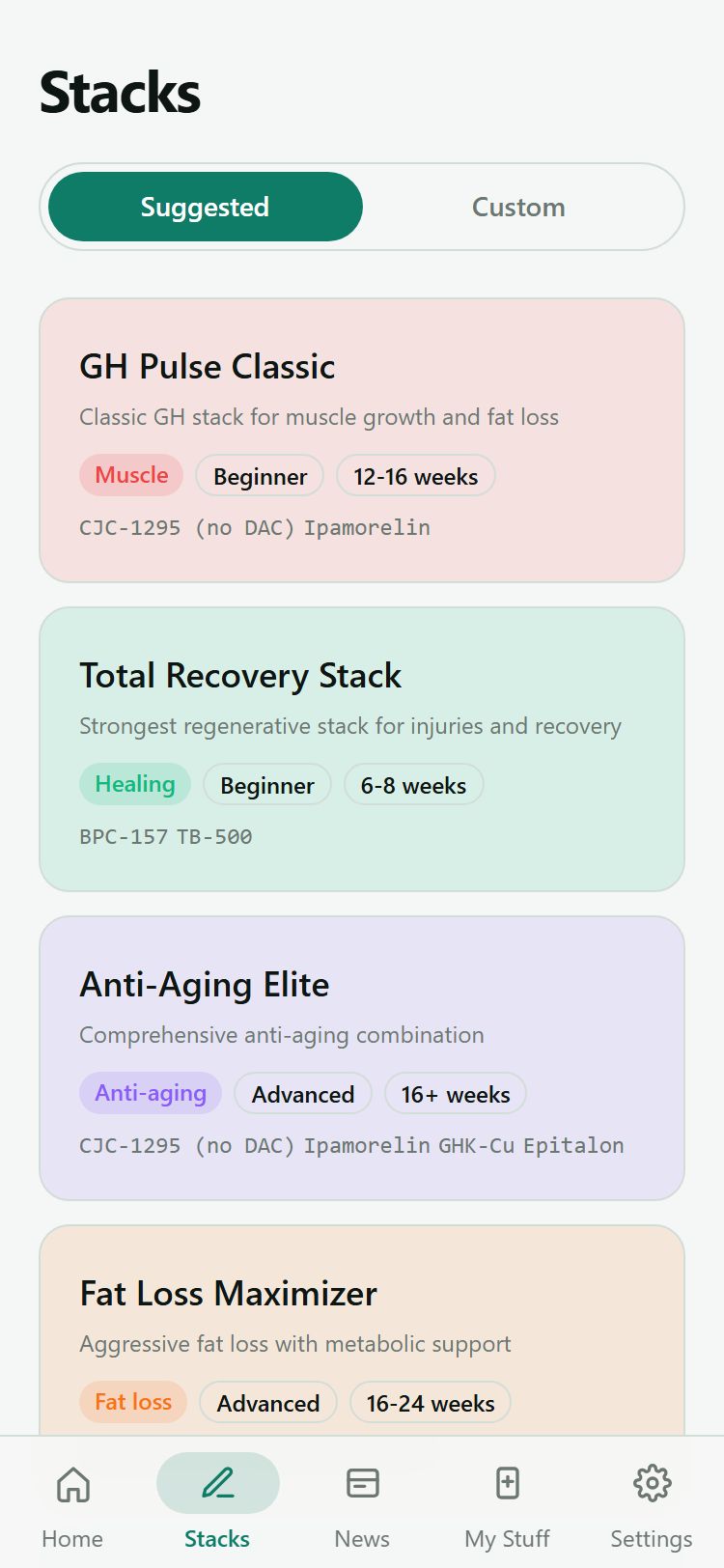
The Stacks tab has two views, switched with the Suggested and Custom tabs at the top.
Suggested holds 13 curated stacks. Each carries a goal badge, so you can find one that matches what you are after:
- Muscle
- Healing
- Fat loss
- Anti-aging
- Cognitive
- Longevity
Stack detail pages
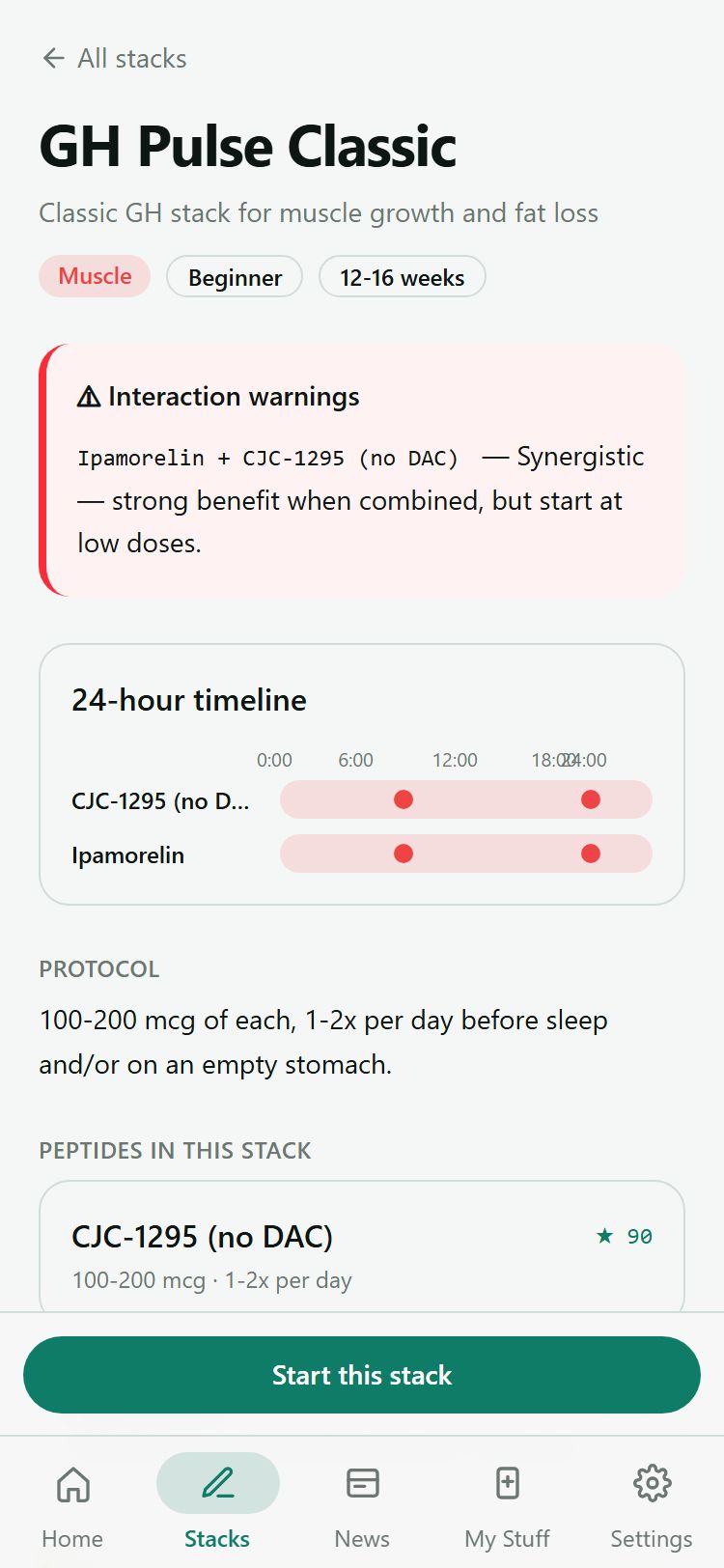
Open any stack to see its full detail:
- A protocol section describing how the stack is run.
- The peptides in the stack, each shown with its dose.
- Interaction warnings for any combinations to be careful with.
- A 24-hour timeline showing how the doses fall across a day.
- A disclaimer.
Starting a stack
Tap Start this stack to turn a stack into reminders in a single step. Peptora creates a reminder for every peptide in the stack at once, and a confirmation toast tells you how many reminders were created.
Building a custom stack
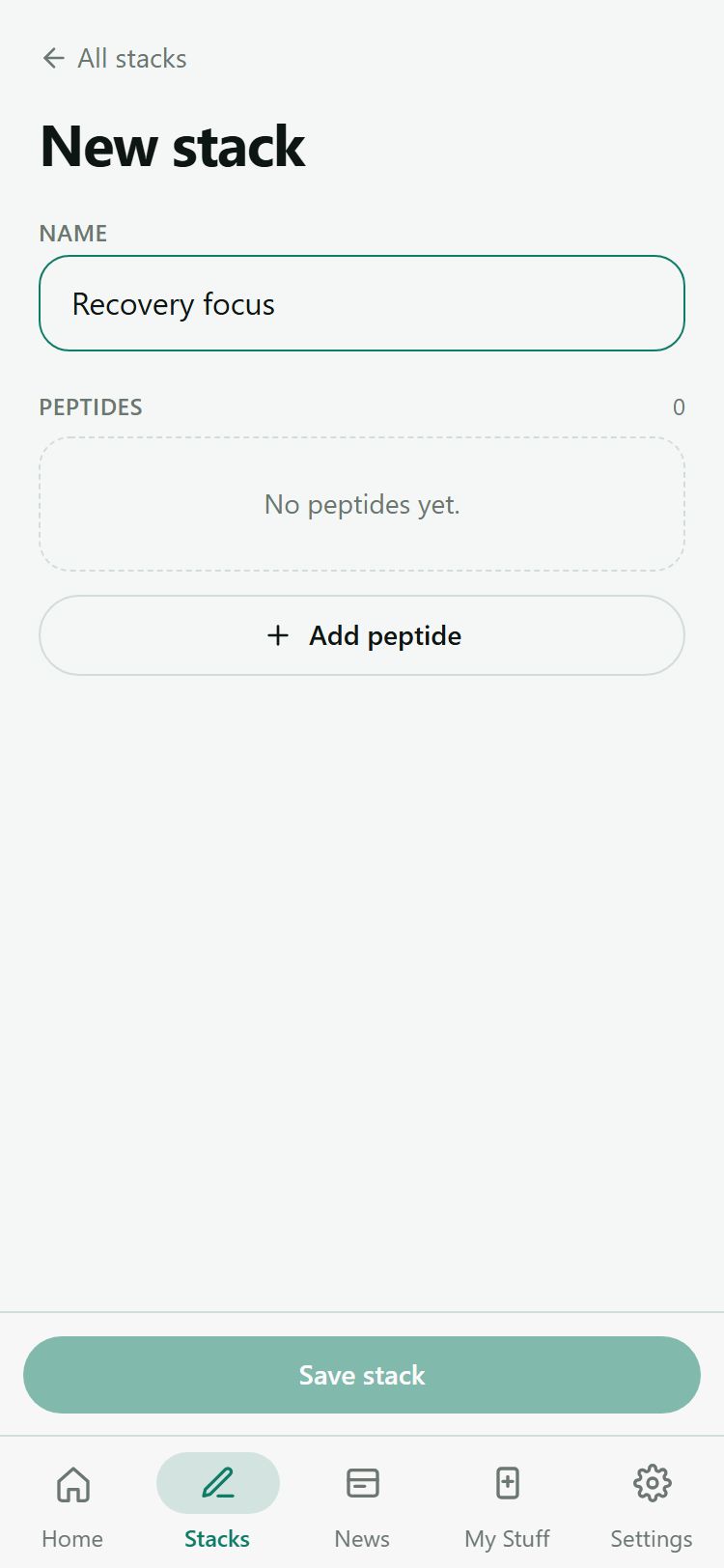
You can also build your own. Go to Stacks → Custom → Build a new stack, then:
- Give the stack a name.
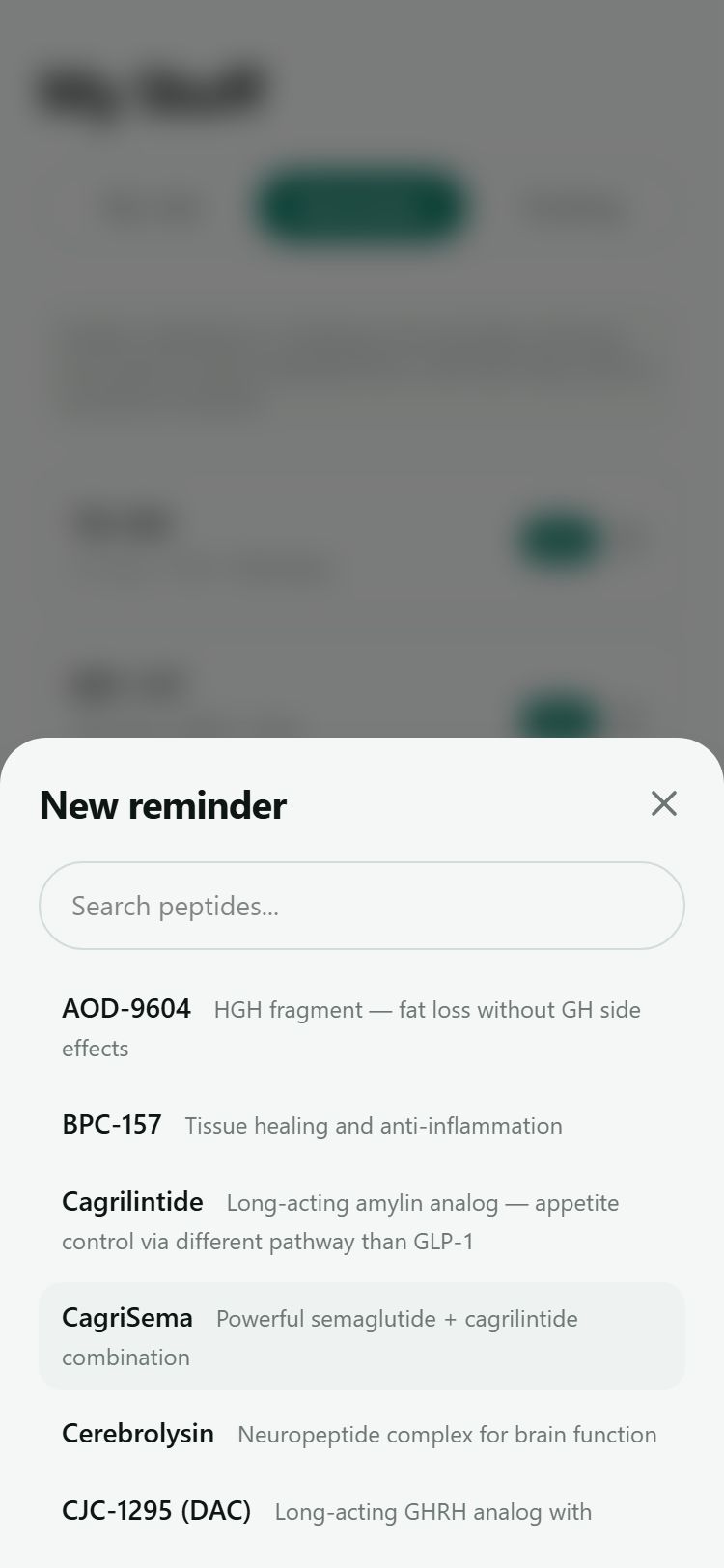
- Add peptides with the searchable picker.
- Set a dose for each peptide.
- Watch for interaction warnings, which appear live as you add peptides.
- Save.
Custom stacks are stored on your device. You can edit or delete them later; deleting asks you to confirm first.
My Stuff
My Stuff is where the app keeps what is personal to you: the vials you own, your bacteriostatic water, your reminders, and your dose history. It has four areas.
My Vials
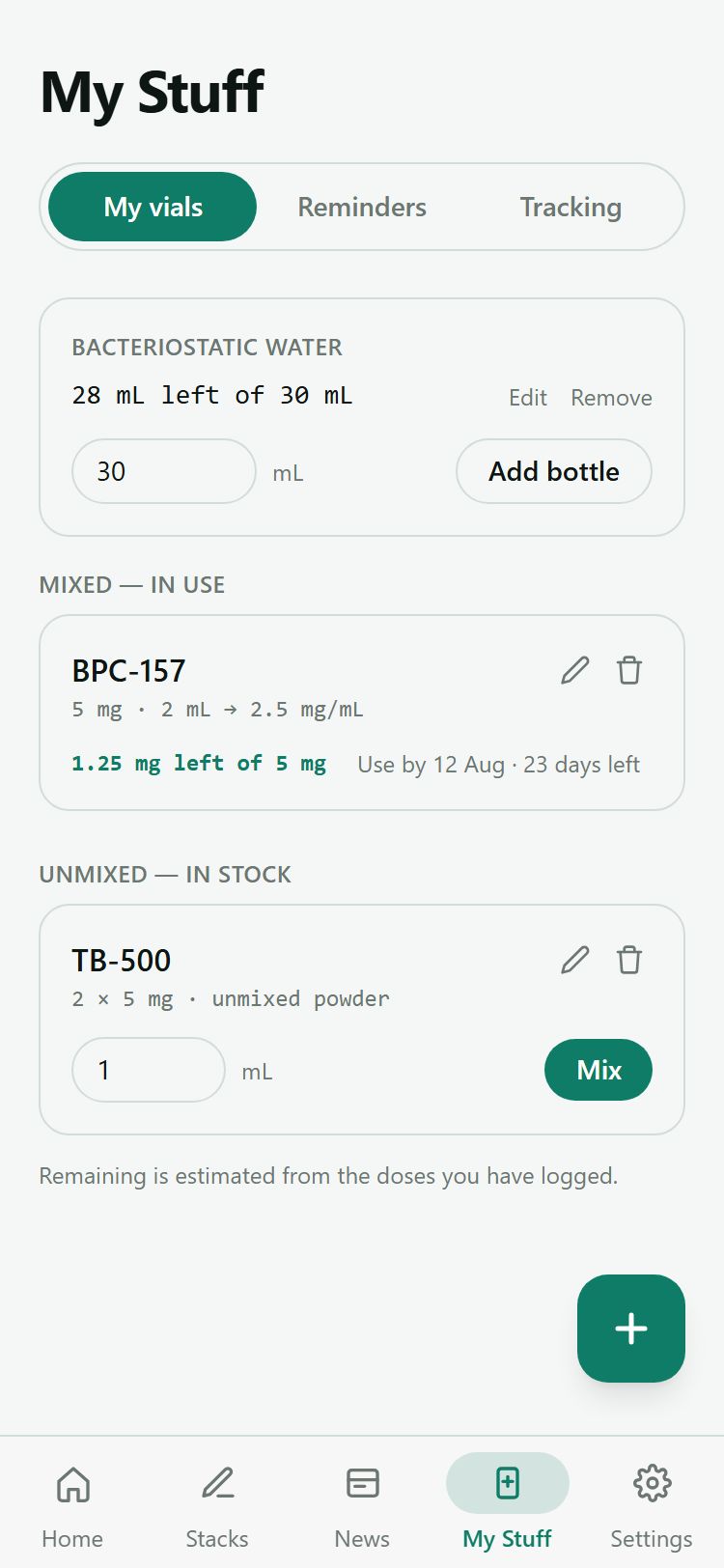
My Vials tracks the peptide vials you actually own.
To add one, tap add and enter the peptide, its size in mg, and how many vials you have. Unopened vials of the same peptide and size consolidate into a single counted row — a batch of five shows as one row with a count, not five separate entries.
When you add a vial you choose mix now or mix later:
- Mix later keeps it as unmixed powder in stock.
- Mix now records the amount of BAC water you add. That fixes the concentration, starts a 28-day use-by countdown, and splits one vial off the batch so the rest stay unmixed.
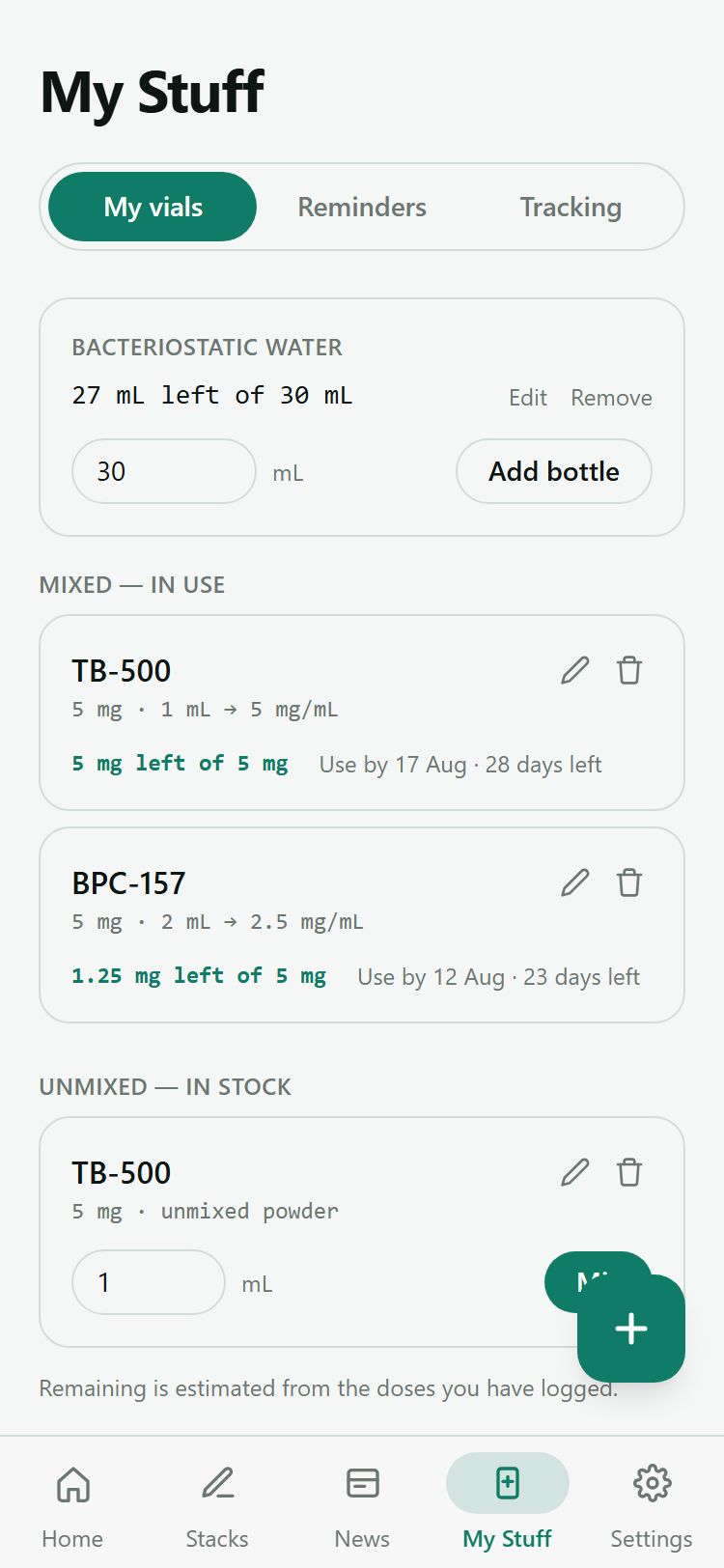
The remaining amount in a mixed vial is derived from the doses you log — it is calculated from your history, never guessed. As you log doses, the remaining figure drops to match.
You can reverse a mix. Un-mix returns the water to its bottle and folds the vial back into its batch, after a confirmation dialog. Once a mixed vial passes its use-by date it gets an expired badge.
You can edit or delete vials anywhere in the list. Deleting a batch that holds several vials asks you to confirm first.
BAC water bottles
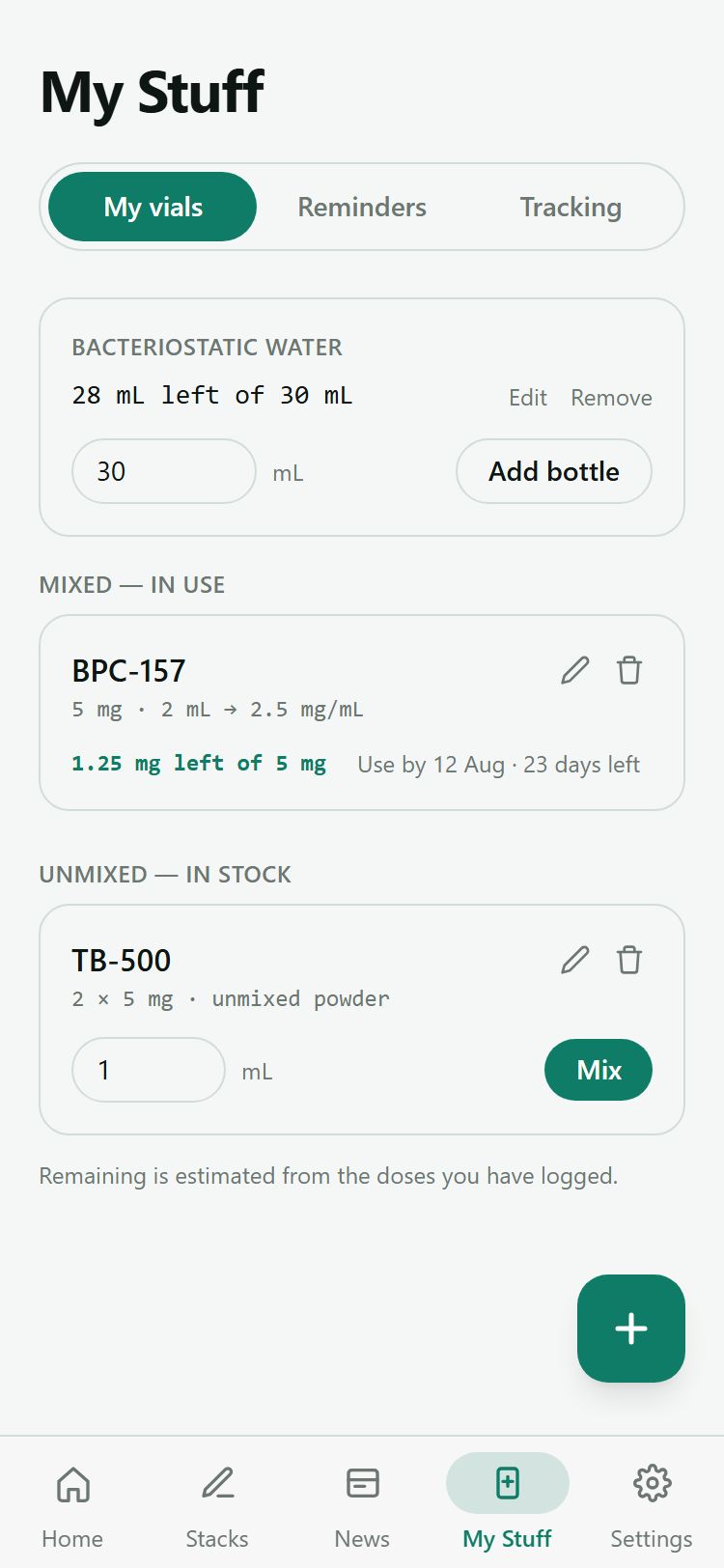
This area tracks your bacteriostatic water. Add a bottle by entering its size in ml. Every time you mix a vial, the water comes out of the bottle you used, and a running total shows how much is left (“X of Y ml left”). You can edit or delete bottles.
Reminders
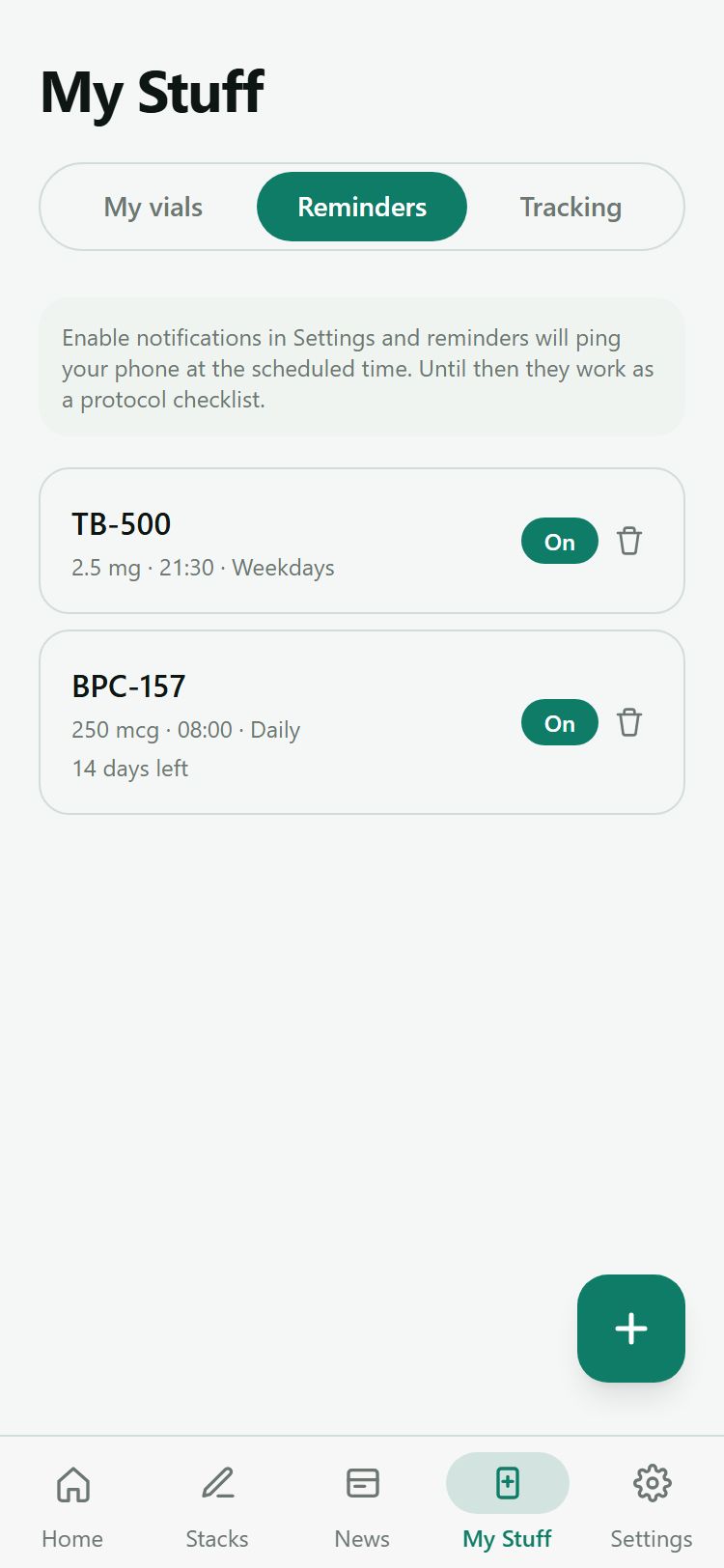
Reminders help you keep to a schedule. Create one from a peptide page or from My Stuff → Reminders. For each reminder you set:
- The peptide
- The dose
- The time
- The days — daily, weekdays, weekends, or a custom set
You can also give a reminder a protocol: a start date plus a duration in weeks, or set it to run ongoing (forever) or until a custom end date. When a protocol is set, a countdown label shows where you are — “finished”, “1 day left”, or “N days left” / “N weeks left”.
Each reminder has an on/off toggle, and you can delete any reminder. To have reminders actually notify your phone, enable notifications in Settings. Until you do, a “pending push” badge shows on your reminders as a heads-up that they are saved but not yet pinging you.
Tracking
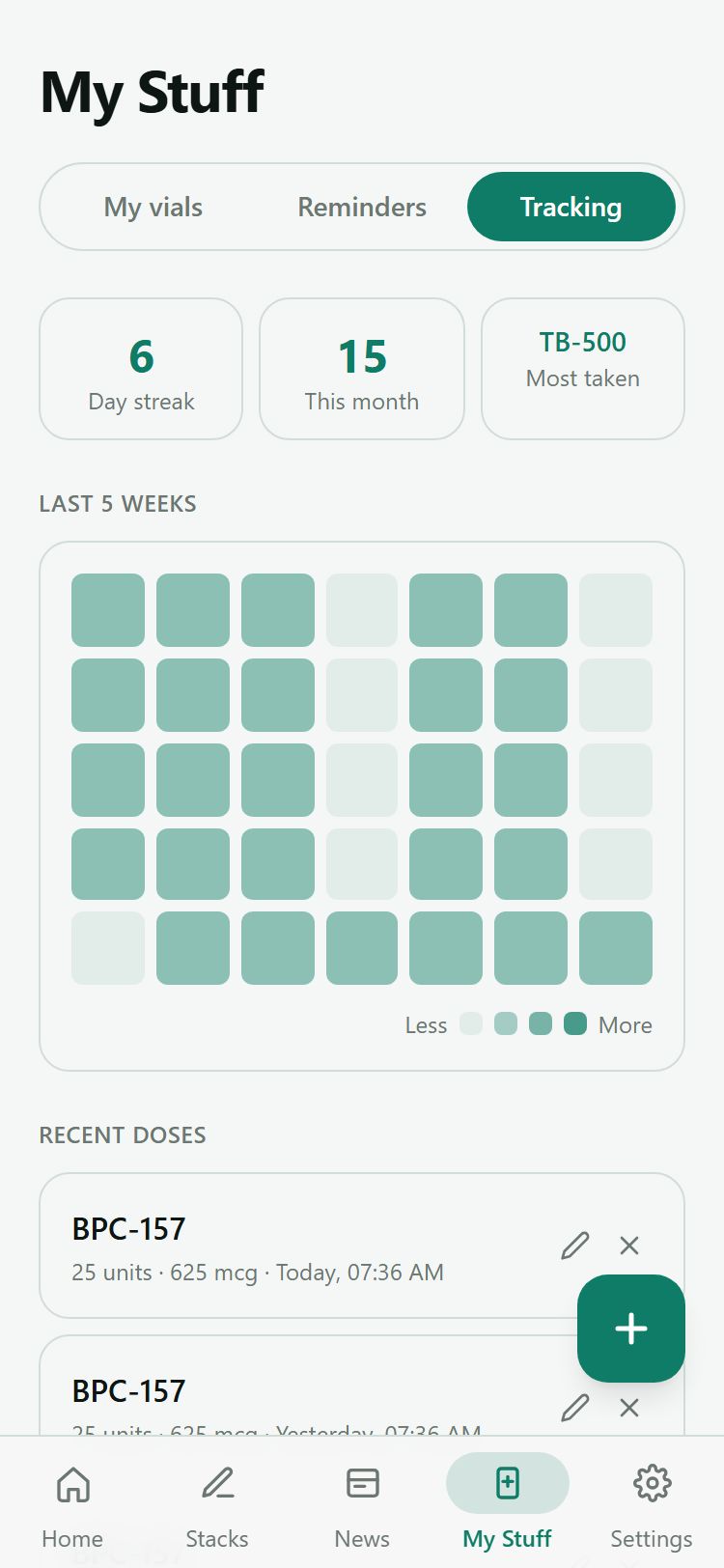
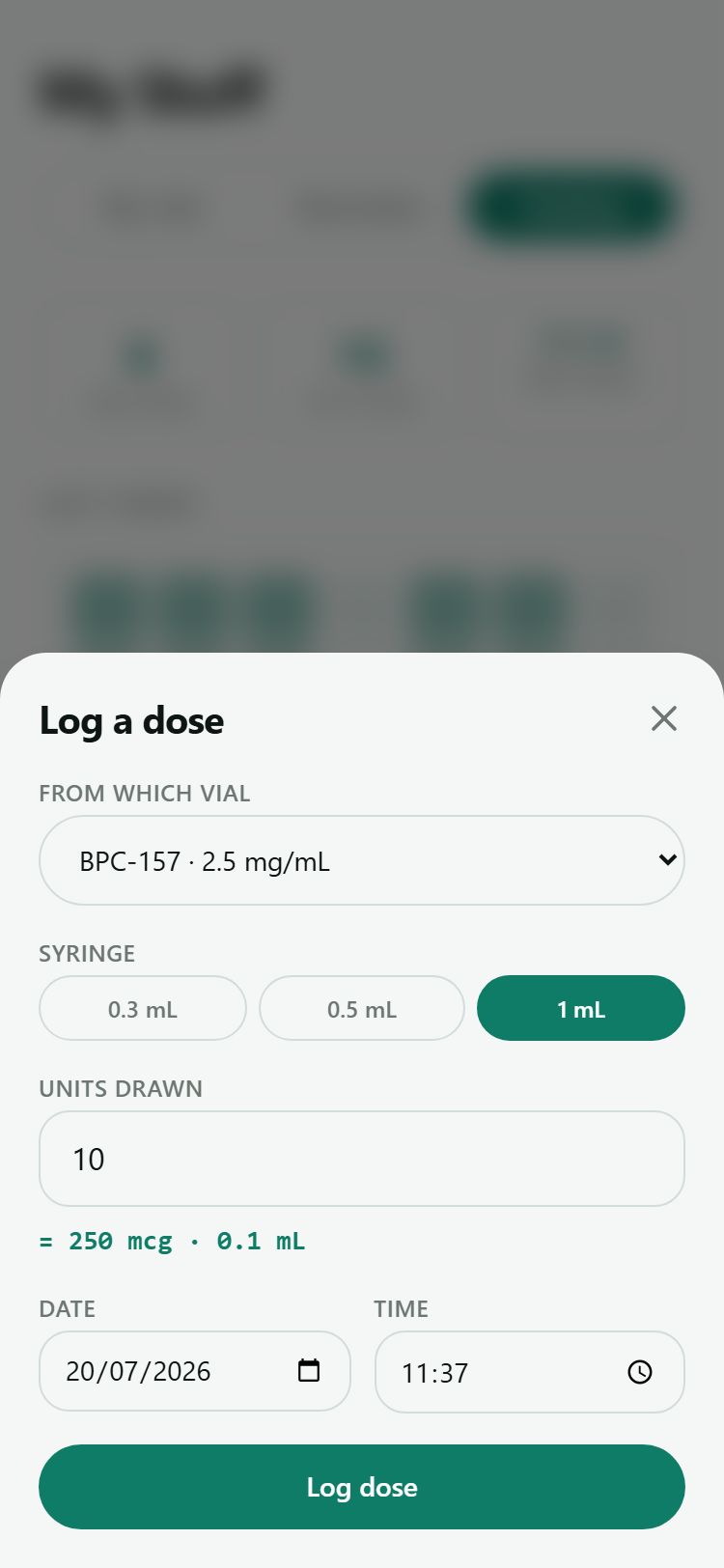
Tracking is your dose history. To log a dose:
- Pick a mixed vial. This fixes the concentration for the calculation. If you have no mixed vials yet, a prompt links you straight to My Vials.
- Choose the syringe size.
- Enter the units you drew. Peptora computes the mg amount for you and drops the vial’s remaining figure to match.
- Set the date and time — they default to now, with Today and Yesterday shortcuts. Add notes if you like; they are optional.
Above the history you get a few stats: your day streak, doses this month, and most-taken peptide. A heatmap (labelled Last 5 weeks) shows your recent consistency at a glance — darker squares mean more doses that day — and a recent list shows your latest entries.
You can edit or delete any log entry, both from the recent list and from a day view.
News
The News tab is a feed of articles pulled from peptora.app, sorted into four categories: research, protocol, product, and industry. Tap Read on peptora.app on any article to open the full piece.
If you want to hear about new articles as they land, enable notifications in Settings — Peptora will notify you when a new article is published. If you are offline or the feed fails to load, an error state with a retry button lets you try again.
Settings
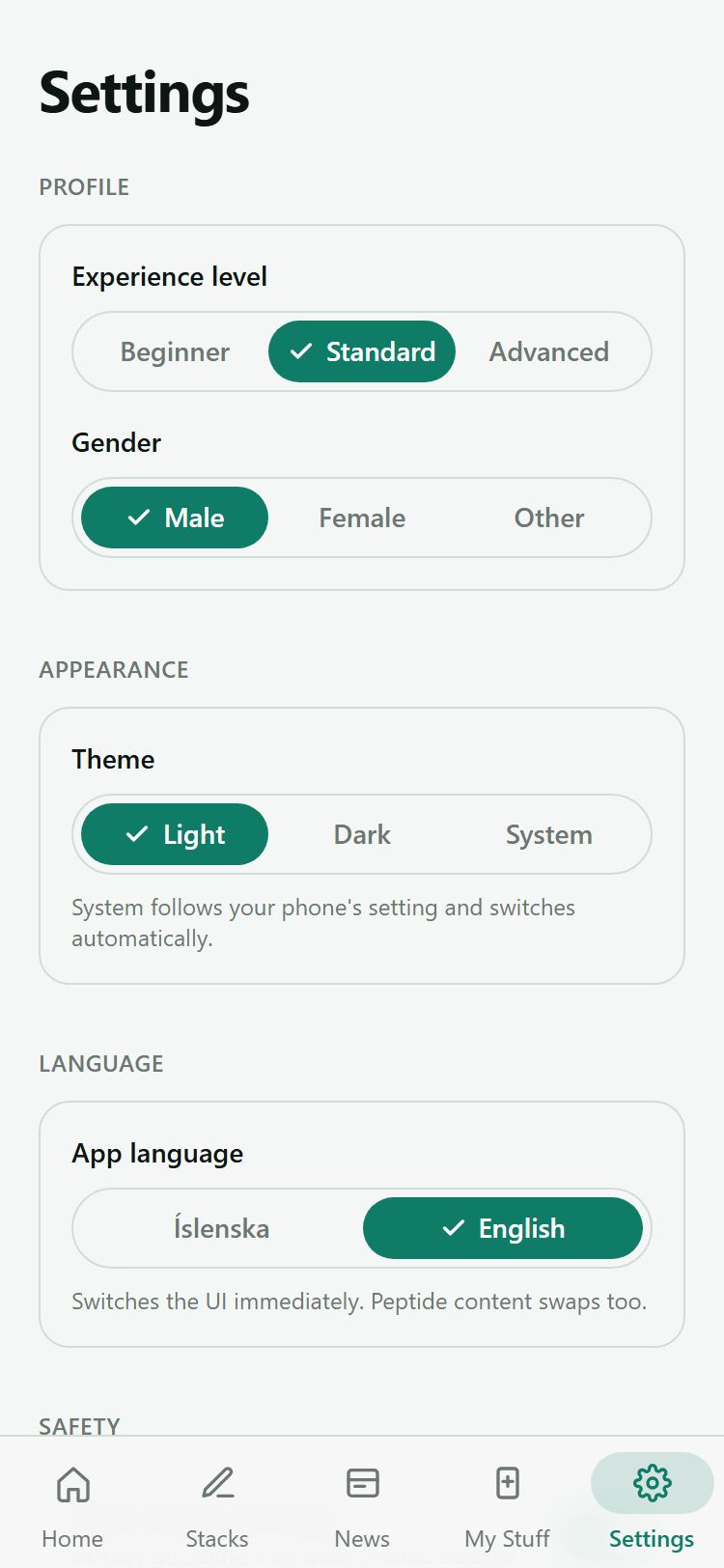
Settings collects your preferences and the app’s information, grouped into sections:
- Profile — your experience level and gender. These change which dosing tier and which gender notes peptide pages emphasize.
- Appearance — theme: Light, Dark, or System (System follows your device).
- Language — English or Icelandic. Switching changes the whole app instantly, including the peptide content itself.
- Safety — a toggle for interaction warnings on dose-related screens.
- Notifications — enable or disable push notifications. If something is off, Settings explains why: an unsupported browser, permission denied, needing to install the app first, or a generic error.
- Newsletter — sign up for occasional updates.
- Your data — a summary of what is stored, and a Clear all data button. Clearing requires a confirmation because it is irreversible.
- About — the app version and build, the disclaimer, and links to peptora.app, the privacy policy, and this support center.
Your Data & Privacy
Peptora keeps everything on your device. Your vials, reminders, dose logs, custom stacks, and preferences all live in your browser’s local database (IndexedDB). There is no account, no cloud, and nothing leaves your device.
That design has trade-offs worth understanding:
- Clearing your browser data, or uninstalling the app, deletes everything permanently.
- Your data does not follow you across devices or browsers. What you enter on your phone will not show up on your laptop.
- There is no export or backup yet. It is a requested feature — you can add your vote through the feature-request form on the support hub.
If you ever want to wipe everything yourself, use Clear all data in Settings.